
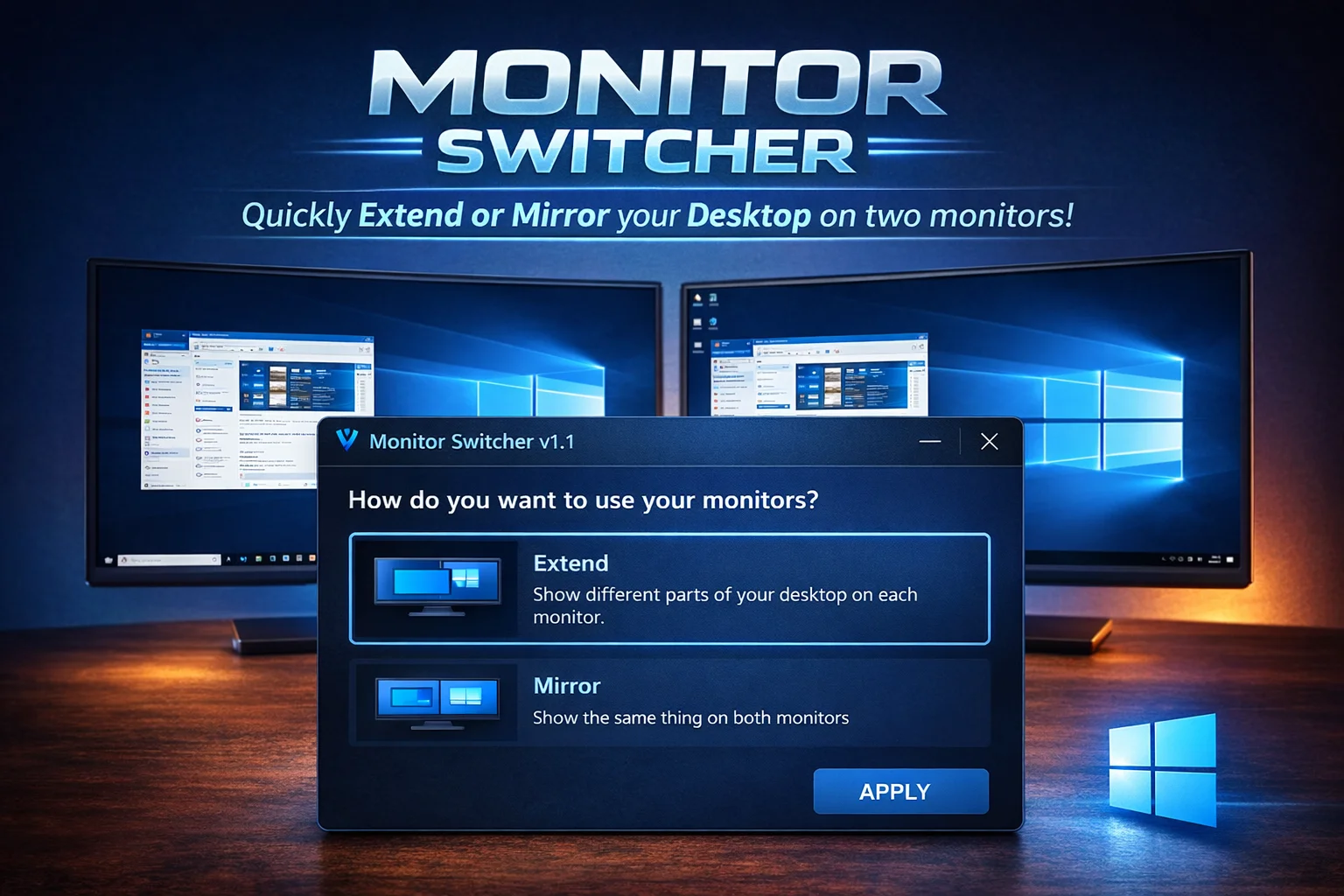
Monitor Switcher
Original price was: $0.99.$0.00Current price is: $0.00.
Unlock Seamless Display Control.
Transform your multitasking workflow with Monitor Switcher by Vestra Interactive. Say goodbye to navigating clumsy system menus and hello to instant, elegant control. Whether you're presenting to a team or expanding your digital workspace, Monitor Switcher lets you toggle between Extended and Mirrored modes with a single, satisfying click.
Built with a stunning, native Windows 11 aesthetic and designed for speed, it’s the polished, professional utility your desktop has been waiting for. Experience the fluid difference.
📘 Monitor Switcher — How To Use
🚀 Quick Start
- Download the setup file and unzip the contents to a folder on your computer.
- Run
MonitorSwitcher_Setup.exe. - Follow the installer prompts.
- Optional during install:
-
Create a Desktop shortcut
-
Add a Start Menu entry
-
Run after the installer finishes.
-
No drivers, no system modifications, and no additional dependencies required.
🖥️ Using Monitor Switcher
System Tray Access
-
Look for the dual-monitor icon in the system tray (near the clock).
-
Right-click the icon to:
-
Extend Desktop
-
Mirror Display
-
Open the main control window
-
-
Double-click the icon to open the main control window instantly.
Keyboard Shortcut
-
Press Ctrl + Alt + M at any time to bring the control window to the front.
Main Control Window

-
Click Extend Desktop to span your desktop across both monitors.
-
Click Mirror Display to duplicate your screen on both monitors.
Changes apply instantly.
❓ Frequently Asked Questions
Does this work on Windows 10?
Yes. Monitor Switcher supports both Windows 10 and Windows 11 and uses Windows’ built-in display switching functionality.
The Ctrl + Alt + M hotkey isn’t working — what should I do?
First, confirm the app is running by checking for the tray icon. If it is running, another application may already be using that key combination. In rare cases, clicking the tray icon once may be needed if Windows has temporarily suspended background apps.
How do I stop Monitor Switcher from starting with Windows?
You can disable auto-start at any time:
-
Open Task Manager → Startup Apps and disable Monitor Switcher
-
Or remove it from your Windows Startup folder
I don’t see the tray icon. Is the app running?
Windows may place it in the hidden system tray. Click the ^ arrow near the clock to view hidden icons. You can drag the Monitor Switcher icon into the main tray area to keep it visible.
Is Monitor Switcher safe to use?
Yes. Monitor Switcher simply calls Windows’ built-in DisplaySwitch.exe command. It does not install drivers, modify system files, or change registry settings.
Additional information
| Version | 1.3 |
|---|
Original price was: $0.99.$0.00Current price is: $0.00.
Reviews
There are no reviews yet.